Discrepancies in device clocks are a frequent source of migration failure, as TOTP codes are time-dependent and will be rejected if the new phone is out of sync by more than thirty seconds. This technical reality underscores the precision required when moving a digital security perimeter from one piece of hardware to another. In 2026, the average professional maintains dozens of accounts protected by Time-based One-Time Passwords (TOTP), ranging from primary email addresses and financial portals to sensitive enterprise administrative consoles. The process of migrating these credentials is no longer just a matter of convenience but a critical operation in maintaining continuity of access across a fragmented device ecosystem. As mobile operating systems become more complex and security protocols more stringent, the traditional method of manually re-entering secret keys has been largely replaced by sophisticated cloud synchronization and local export tools. However, the introduction of these features has created a landscape where users must choose between the convenience of automated backups and the enhanced privacy of offline transfers. Navigating this transition requires a structured approach that prioritizes data integrity and redundant recovery options to ensure that a single hardware upgrade does not lead to a catastrophic lockout from essential digital services. Understanding the nuances of these migration paths is the first step in ensuring that security remains robust during a hardware transition.
1. Refresh the Application to the Latest Version
Before initiating any data movement, the primary objective is to ensure that the Google Authenticator app on the original device is running the most recent software build. In the current landscape of 2026, security applications receive frequent updates that address not only vulnerability patches but also database structure modifications that facilitate smoother cross-platform migrations. If the version on the old phone is outdated, it may use a legacy encryption format or a synchronization protocol that is no longer compatible with the cloud architecture or the import logic of the new device. An outdated application could lead to silent errors during the export process, where the data appears to move but the resulting six-digit codes fail to generate correctly on the target hardware. Therefore, the user should navigate to the Play Store or App Store and manually trigger an update to ensure the environment is stable and ready for the migration. This step serves as the foundation for the entire process, minimizing the risk of software-induced data corruption that could occur if two different generations of the app try to communicate.
The necessity of updating the application also extends to the underlying operating system services that manage secure storage. Modern versions of Google Authenticator rely on advanced system-level cryptographic modules to protect the secret seeds used for generating codes. If the application is updated but the system services are not, the app may face limitations in how it handles the “Cloud Sync” feature, which was introduced to allow for a more seamless transition between devices. A fully updated app ensures that the latest fixes for synchronization lag and database indexing are present, which is particularly important for users with a large volume of accounts. In 2026, many users manage fifty or more tokens, and the complexity of moving such a large volume of sensitive data requires the most robust version of the transfer protocol available. By ensuring both the old and new devices are on the latest versions, the user eliminates a significant percentage of potential failure points before the actual migration begins. This proactive measure provides a clean slate for the more technical steps that follow, ensuring that the migration logic functions as intended by the developers.
2. Store Separate Backup Codes for Each Account
One of the most common misconceptions regarding 2FA migration is the belief that transferring the Authenticator app itself is sufficient to guarantee access to all services. In reality, each service—whether it is a GitHub repository, a corporate VPN, or a cryptocurrency exchange—provides its own set of emergency recovery codes that function independently of the Authenticator app. These codes are meant to be a secondary bypass method in case the primary 2FA device is lost, broken, or fails to migrate correctly. Before starting the transfer, it is essential to log into high-value accounts and verify that these static recovery codes are saved in a secure, non-mobile location. Relying solely on a successful transfer of the Authenticator database is a risky strategy because if a specific token fails to import or the secret seed becomes corrupted during the move, the user will be completely locked out of that service without these backup codes. Having a physical printout or a digital copy stored in an encrypted password vault provides a safety net that transcends the hardware transition currently taking place.
Building this redundant layer of security is especially critical for accounts that do not offer easy human-based recovery options. In 2026, automated security systems often prioritize strict protocol over user pleas for help, making the recovery codes the only definitive way to regain access after a 2FA failure. When saving these codes, the user should ensure they are clearly labeled and stored in a manner that remains accessible even if the primary mobile device is undergoing a factory reset or is otherwise incapacitated. This preparation phase acts as an insurance policy against the unpredictable nature of data synchronization. While Google Authenticator has become more reliable with its cloud-based features, the decentralized nature of TOTP means that the app only stores a copy of the secret key, not the recovery logic of the service provider. By securing these codes first, the user transforms the migration from a high-stakes gamble into a controlled procedure. This step ensures that no matter what happens during the digital handshake between the old and new phones, the user maintains a clear path back into their most vital accounts through verified alternative means.
3. Ensure Your Google Account Recovery Details Are Current
Because modern migration often utilizes the “Cloud Sync” feature, the security and accessibility of the primary Google Account become the linchpin of the entire process. If the user intends to move their codes via the cloud, they must first ensure that the Google Account itself is fully protected and has updated recovery options. This involves checking the security settings at myaccount.google.com to verify that a current recovery phone number and an alternative email address are on file. In a scenario where the new phone requires a 2FA code to sign into the Google Account, but that code is trapped on the old phone (or within an app that hasn’t synced yet), the user could find themselves in a circular lockout. Having verified recovery details allows the user to bypass this loop by receiving a verification code via SMS or an alternative email. This preparation is a prerequisite for a smooth cloud-based move, as it ensures that the master identity used to facilitate the transfer is itself recoverable and resilient against common setup errors.
Furthermore, the integration of Google Authenticator with a central account means that the strength of the Google Account’s password and its own two-factor settings directly impacts the safety of the stored TOTP seeds. In 2026, it is highly recommended to use a physical security key or a passkey for the Google Account that will be performing the sync. By hardening the recovery details, the user prevents a situation where a lost device leads to a permanent loss of all synced 2FA tokens. If the recovery information is outdated—for instance, if it points to a phone number the user no longer possesses—the entire cloud migration path becomes a liability rather than an asset. Taking five minutes to refresh these settings ensures that the cloud infrastructure remains a helpful tool for migration rather than a barrier. This oversight is frequently cited in support forums as a primary cause of account loss during device upgrades, highlighting the need for a thorough audit of account-level security before proceeding with the app-level transfer.
4. Launch the App and Enter the Backup Menu
With the preparation finished, the technical portion of the migration begins on the original device. After opening Google Authenticator, the user must navigate the interface to find the account management tools, which in the 2026 version of the app are typically located under the profile icon in the top-right corner. This menu serves as the control center for all synchronization and export activities. Within this section, the user will find options for “Backup” and “Transfer Accounts,” each serving a specific purpose depending on the chosen migration strategy. It is important to distinguish between these options: the backup feature is designed for continuous cloud synchronization, while the transfer feature is intended for a one-time direct movement of accounts between two phones. Selecting the correct menu is vital for ensuring that the user does not inadvertently delete accounts or initiate a transfer that they are not yet ready to complete on the secondary device.
The user interface is designed to be intuitive, yet it requires careful attention to detail to ensure that all tokens are included in the scope of the move. Once inside the backup menu, the app will display the current status of the account, showing which Google profile is currently linked to the device’s 2FA database. This is a critical moment to confirm that the correct identity is being used, especially for individuals who manage multiple Google profiles for work and personal use. In 2026, the app supports multi-account management, but the tokens are generally tied to a specific primary account for synchronization purposes. Ensuring that the app is pointing to the intended account prevents the fragmentation of the code list across different cloud identities. Navigating this menu correctly sets the stage for the synchronization process, allowing the user to initiate the digital handshake that will eventually populate the new phone with the necessary authentication data.
5. Activate Cloud Synchronization and Sign In
Activating the cloud synchronization feature is the most efficient way to handle a migration in 2026, as it creates a persistent copy of the 2FA seeds within the user’s encrypted Google Account storage. When the user selects the option to link their codes to their Google Account, they are prompted to sign in and authorize the backup. This action triggers a process where the local database of secret keys is uploaded to Google’s servers. A key visual indicator during this phase is the cloud icon that appears next to the profile picture or within the account list. This icon serves as a confirmation that the app has established a secure connection and that the data is being successfully transmitted. Without this visual cue, the user should assume that the synchronization is either paused or failing due to network restrictions or account issues. Enabling this feature transforms the 2FA tokens from device-bound secrets into account-bound assets, which significantly simplifies the recovery process if the hardware is ever damaged.
However, the activation of cloud sync also brings up the topic of data privacy. While the convenience of cloud migration is undeniable, the user must be comfortable with the fact that their TOTP seeds are being stored on external servers. In 2026, Google utilizes robust encryption for these backups, but for users with extreme security requirements, the manual offline method remains an alternative. For the majority of users, the safety provided by a cloud backup—which prevents total loss of access if a phone is stolen—outweighs the theoretical risks of cloud storage. Once the sign-in is complete and the sync toggle is active, the app begins the work of mirroring the local environment to the cloud. This process is generally seamless but relies on a stable internet connection and valid account credentials. Successfully navigating this step means that the data is no longer siloed on a single piece of glass and metal, but is instead ready to be pulled down by any authorized device the user chooses to set up next.
6. Allow a Few Minutes for the Data to Upload
After enabling the synchronization feature, it is imperative to allow the system enough time to complete the data transfer to the cloud. While digital transitions often feel instantaneous, the backend processes involved in encrypting and storing dozens of unique cryptographic seeds can encounter minor delays based on network congestion or server load. Users with extensive lists of accounts—sometimes exceeding one hundred tokens in enterprise environments—should be particularly patient. Jumping too quickly to the new device before the old one has finished the upload can result in an incomplete list on the new phone, which may lead to confusion or the mistaken belief that data has been lost. A best practice is to keep the app open for several minutes and monitor the synchronization status indicator. In 2026, the app provides more detailed status updates than previous versions, but a manual “wait period” remains the safest way to ensure that the server-side image of the 2FA database is fully up to date.
During this waiting period, it is also advisable to check for any error messages or “sync paused” notifications that might arise from battery-saving modes or background data restrictions. Modern mobile operating systems are aggressive about cutting off background processes to save power, which can inadvertently stall a synchronization task. Ensuring the phone is connected to a reliable Wi-Fi network and possibly a power source can prevent these interruptions. Once the cloud icon indicates that the backup is current, the user can have confidence that the “source” data is ready. This phase of the migration is about verification and patience, ensuring that the transition from the old device to the new one is based on a complete and accurate dataset. By allowing the synchronization process to breathe, the user avoids the common pitfall of “ghost accounts” where labels appear on the new device but the actual six-digit codes fail to generate because the underlying secret key was not fully transmitted.
7. Download and Open the App on Your Replacement Phone
Transitioning to the new device begins with a fresh installation of the Google Authenticator app from the official application store. It is crucial to source the app directly from the Play Store or App Store to avoid unofficial or malicious clones that might attempt to steal sensitive 2FA seeds. Once the app is installed and opened for the first time, the user is typically greeted with a welcome screen that outlines the features of the application and asks for necessary permissions. In 2026, these permissions include camera access—required for scanning QR codes—and notification access, which some services use for simplified “Tap to Approve” prompts. Granting these permissions correctly is essential for the full functionality of the app. The initialization phase on the new phone is designed to be streamlined, focusing on getting the user signed in so that the recovery or sync process can begin without unnecessary administrative hurdles.
The first launch on a new device is also the moment when the app establishes its local secure enclave, a protected area of the phone’s hardware where the cryptographic keys will be stored. This process happens automatically in the background, but it requires the device to be in a healthy state with sufficient storage and no pending system updates that might interfere with secure storage initialization. As the user proceeds through the setup screens, they should select the option to sign in with an existing account rather than setting up the app as a “new” user from scratch. This distinction is what triggers the cloud retrieval logic, allowing the app to look for existing backups tied to the user’s identity. By properly installing and preparing the app on the target device, the user ensures that the environment is ready to receive the synchronized data, completing the second half of the hardware bridge that was started on the original phone.
8. Log In with the Same Google Credentials
The success of a cloud-based transfer depends entirely on account consistency. The user must sign into the new Google Authenticator installation using the exact same Google Account email and password that were used to back up the data on the old device. In 2026, many users have complex digital lives involving multiple personal and professional email addresses, and a common mistake is signing into a secondary or work account on the new phone, which will naturally result in an empty list of 2FA codes. If the user is part of an organization that uses managed Google profiles, they should ensure they are signing into the specific profile that holds the Authenticator backup. The app’s ability to pull data from the cloud is predicated on the identity token provided during this login phase, making it the most critical juncture for data continuity.
Once the credentials are entered, the device may require its own two-factor verification. This is where the preparation from Step 2 and Step 3 becomes invaluable. If the Google Account requires a code from the Authenticator app to log in, the user should use the old phone (which should still be active and nearby) to provide that code. If the old phone is unavailable, this is the moment to use the backup codes or recovery email verified earlier. Successfully logging in initiates the handshake with Google’s servers, which then begin the process of downloading the encrypted seeds to the new hardware. This step effectively mirrors the identity from the old device to the new one, allowing the secure tokens to follow the user rather than being tied to a specific piece of plastic and silicon. Accuracy in this step eliminates the most frequent hurdle in the migration process and ensures that the cloud-based data has a clear path to its new home.
9. Check That Your Code List Appears on the Screen
After signing in, the user should observe the main screen of the application as it populates with the various accounts and their corresponding six-digit codes. In 2026, this process is usually rapid, with the list appearing within seconds of a successful login. However, the user should not just look for the presence of labels; they should verify that the codes are actually generating and that the countdown timers are moving. If the list is empty, it may be necessary to pull down on the screen to trigger a manual refresh or to check the synchronization settings within the app to ensure that “Cloud Sync” is enabled on the new device as well. It is also important to verify that the entire list has arrived. In some cases, a partial sync might occur if the connection is interrupted, leaving some accounts missing. A quick count of the accounts on both the old and new phones is a simple way to confirm that the transfer was comprehensive.
If the codes appear but the labels are missing or incorrect, it could indicate a synchronization error or a version mismatch. However, the most common issue at this stage is a clock discrepancy. If the codes on the new phone do not match the codes on the old phone for the same account, the internal clock of the new device likely needs to be synchronized with the network time. Google Authenticator relies on extreme temporal precision, and even a small drift can result in the generation of invalid codes. Most modern phones handle this automatically, but if the codes are different, the user should go into the app settings and select “Time correction for codes” to ensure the app is perfectly aligned with the global standard. Seeing a full, functional list of codes that match the original device is the primary indicator that the cloud migration phase has been successfully navigated. This visual confirmation provides the peace of mind needed to proceed to the final verification steps.
10. Create a Transfer QR Code on Your Original Device
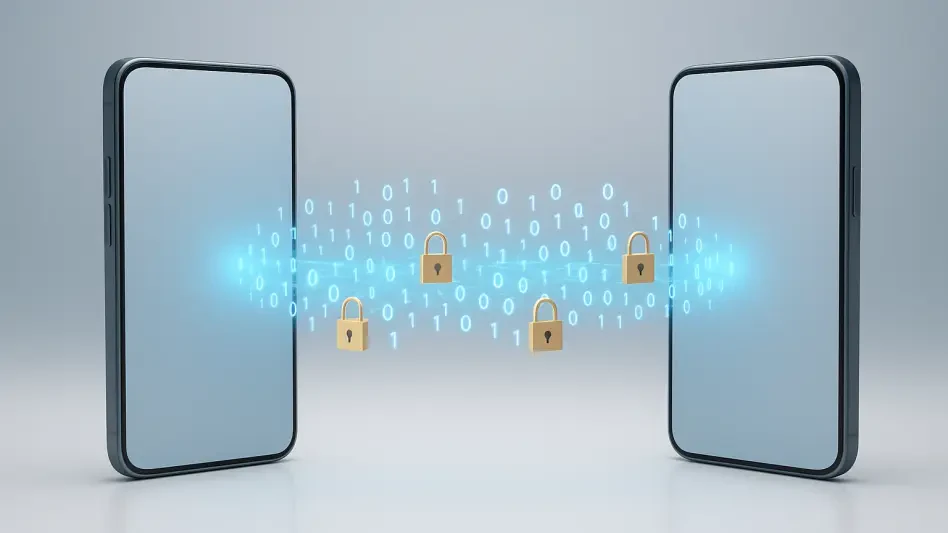
For users who prefer an offline migration or for those who want an extra layer of redundancy, the manual QR code transfer is a highly effective method. This process does not rely on the cloud or a Google Account; instead, it generates a local, encrypted payload that is displayed as a large QR code on the old phone’s screen. To begin this, the user navigates to the “Transfer accounts” option in the main menu of the original device and selects “Export accounts.” The app will then ask the user to select which tokens they wish to include in the export. This is a useful feature for those who may want to split their accounts across multiple devices or who only want to move a subset of their digital identities. Once the selection is made, the phone will display a complex QR code that contains the secret seeds for all selected accounts, formatted in a specific way that the Authenticator app on the new phone can interpret.
It is vital to treat this QR code with the highest level of security. In 2026, screen-scraping malware and unauthorized photography remain threats, so the user should ensure that they are in a private location when the QR code is visible. The code should never be screenshotted, emailed, or stored as an image, as anyone who gains access to that image will have full access to all the 2FA tokens contained within it. The transfer QR code is a “live” representation of the user’s security keys, and its visibility should be limited strictly to the duration of the scan. This method is often preferred by security-conscious individuals because the data never leaves the local environment, moving directly from the screen of one device to the camera of the other. It acts as a definitive, physical bridge between the two pieces of hardware, ensuring that the migration is completed under the user’s direct supervision and control.
11. Use the New Phone to Capture the Export QR Code
With the export QR code visible on the old device, the user then takes the new phone and selects the “Import accounts” option from the “Transfer accounts” menu. This activates the camera, which is used to scan the code displayed on the original device. In 2026, the scanning technology is highly advanced, capable of reading dense QR codes even in low light or at slight angles. When the scan is successful, the new phone will immediately process the data and add the imported accounts to its local list. The user will typically see a confirmation message indicating how many accounts were successfully transferred. This local handoff is instantaneous and bypasses any potential latency issues associated with cloud synchronization, making it an excellent choice for users who are in a hurry or who are working in an environment with poor internet connectivity.
The integrity of this transfer depends on the camera’s ability to capture the entire QR code clearly. If the old phone’s screen is cracked or if there is significant glare, the scan may fail or take multiple attempts. Once the scan is complete, the user should immediately see the new accounts appear at the bottom of their list. A critical step during this manual import is to verify that the accounts have been merged correctly with any existing accounts that may have already been synced via the cloud. Google Authenticator is generally smart enough to avoid creating duplicates if the secret seeds are identical, but a manual review is still recommended. This offline method completes the physical migration of data, ensuring that the new device is now a mirror image of the old one in terms of its 2FA capabilities. The direct nature of this transfer provides a high degree of confidence that the data has arrived intact and is ready for use.
12. Test Every Account to Ensure the Migration Was Successful
The final and most crucial stage of the migration is the verification process, which must be completed before the old device is wiped or decommissioned. The user should systematically log into several of their most important services—such as email, banking, and primary work portals—using the codes generated by the new device. It is not enough to simply see the codes; the user must confirm that the services actually accept them. This live testing phase identifies any issues with time synchronization or data corruption that might have occurred during the transfer. If a service rejects a code from the new phone but accepts a code from the old one, it is a clear sign that the new device’s clock is out of sync or that the secret seed was not imported correctly. This is the last opportunity to fix such issues while the original, working codes are still accessible on the old hardware.
During the concluding steps of the migration, users found that taking the time to verify each account prevented significant frustration in the days following a hardware upgrade. It was discovered that once the old phone was erased, any accounts that had not migrated successfully required a lengthy and often difficult manual recovery process through each service provider’s support team. By performing a side-by-side comparison of the codes on both devices, the user ensured that the new phone was a reliable replacement. Once every account was confirmed to be working, the user could then safely remove the accounts from the old phone or perform a factory reset. This structured verification turned a potentially stressful technology shift into a routine maintenance task. The final recommendation for any user finishing this process was to revisit their security settings and consider adding a physical security key as a tertiary backup, ensuring that their digital identity remained protected against future hardware failures or loss. This proactive stance on 2FA management allowed for a seamless transition into the continued use of their new mobile device.